Recommended setup: Create a profile called “No TikTok During Work,” add tiktok.com, test it unlocked, and then schedule only the hours you actually need. The parent-domain rule is the intended starting point; add another TikTok host only if a route you actually use still opens.
The exact profile recipe
This is a narrow, reversible setup for one habit: opening TikTok during a planned work or study window. It does not block unrelated social sites, and it does not require a browser extension.
| Setting | Value | Reason |
|---|---|---|
| Profile | No TikTok During Work | Keeps this habit separate from broader social blocking. |
| Website rule | tiktok.com | Starts with the parent domain rather than guessing paths or regional hosts. |
| Schedule | Monday–Friday, 09:00–17:00 | An example work window; change it to match your real week. |
| Lock | Off during testing | Lets you repair an incomplete rule without trapping yourself. |
1. Create a dedicated TikTok profile
Open DeepZone from the Mac menu bar, create a new profile, and name it for the boundary you want rather than the site alone. “No TikTok During Work” makes the purpose and the allowed time obvious.
In the profile’s website list, add tiktok.com. Enter a domain, not a full URL such as https://www.tiktok.com/foryou, and do not add a path such as /foryou to the domain field.
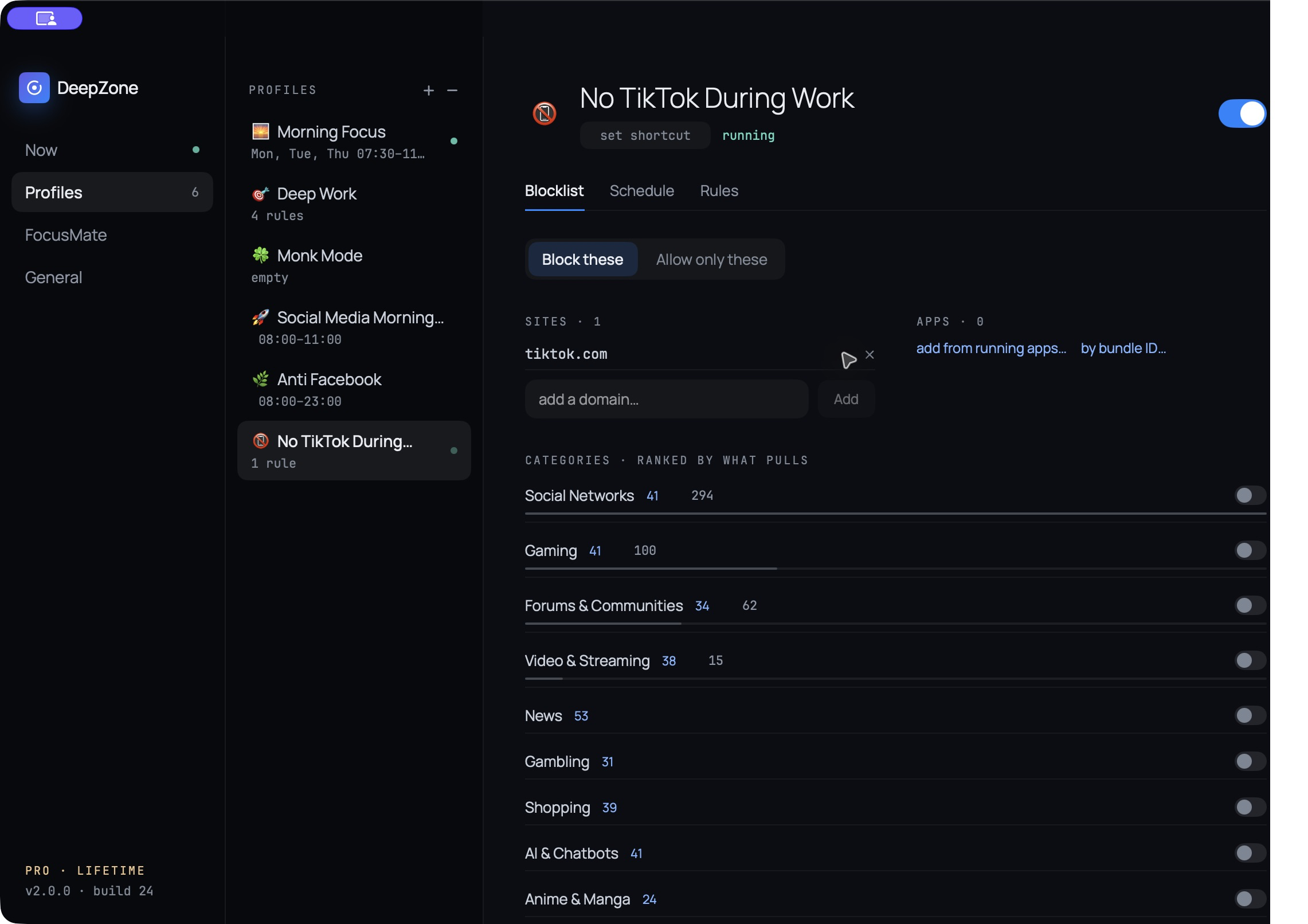
tiktok.com. No native app rule or lock was used.Why only one rule first? A short block list is easier to test. Do not add tiktokcdn.com, short-link hosts, or guessed country domains unless a route you actually use still works and your test shows that exact host is the reason.
2. Test the blocked route and a required route
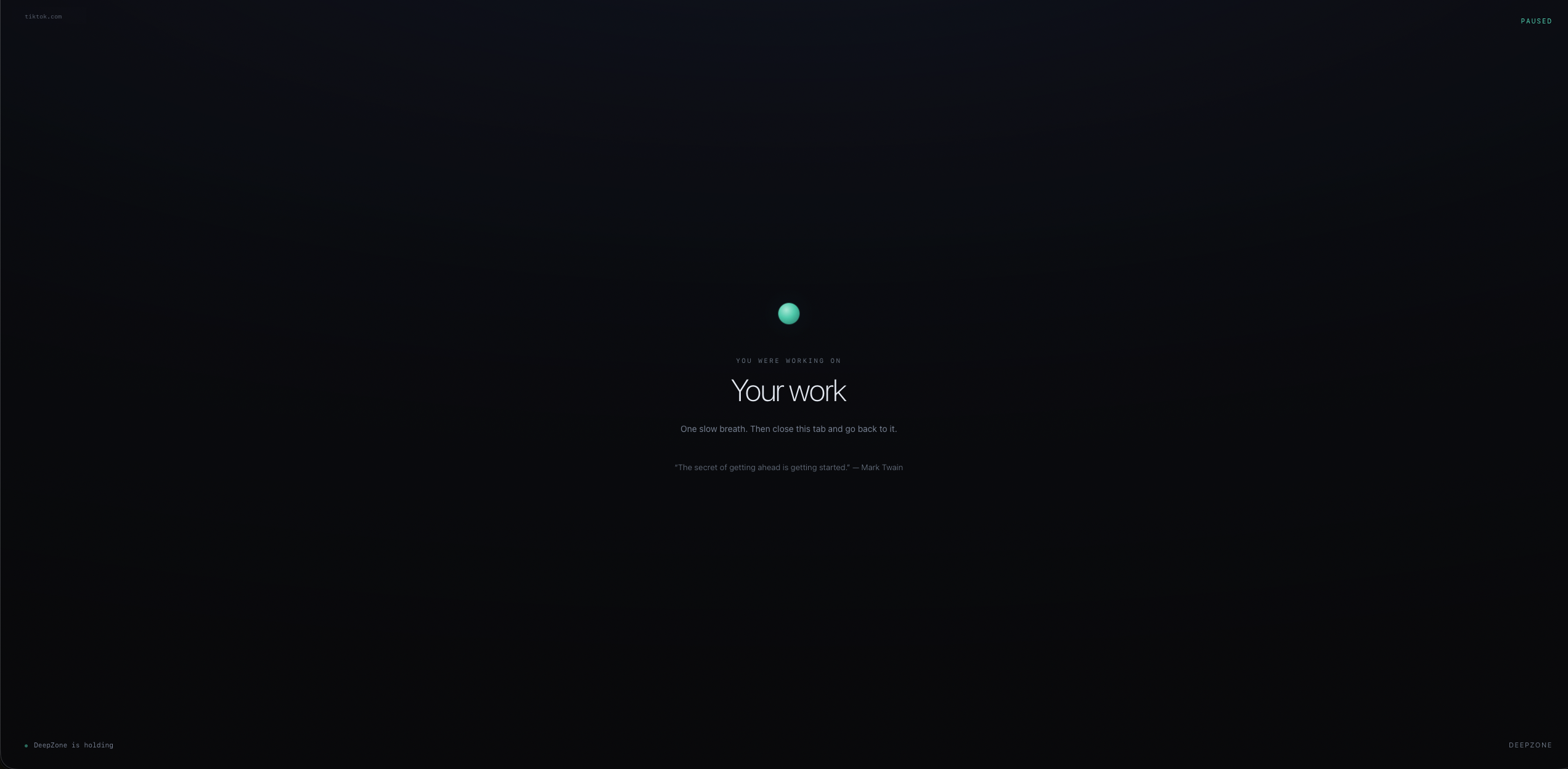
Start the profile while it is still unlocked. Open a fresh browser tab and visit https://www.tiktok.com/. A handled block should show DeepZone’s quiet interruption screen, reminding you what you were working on, rather than exposing a raw browser connection error.
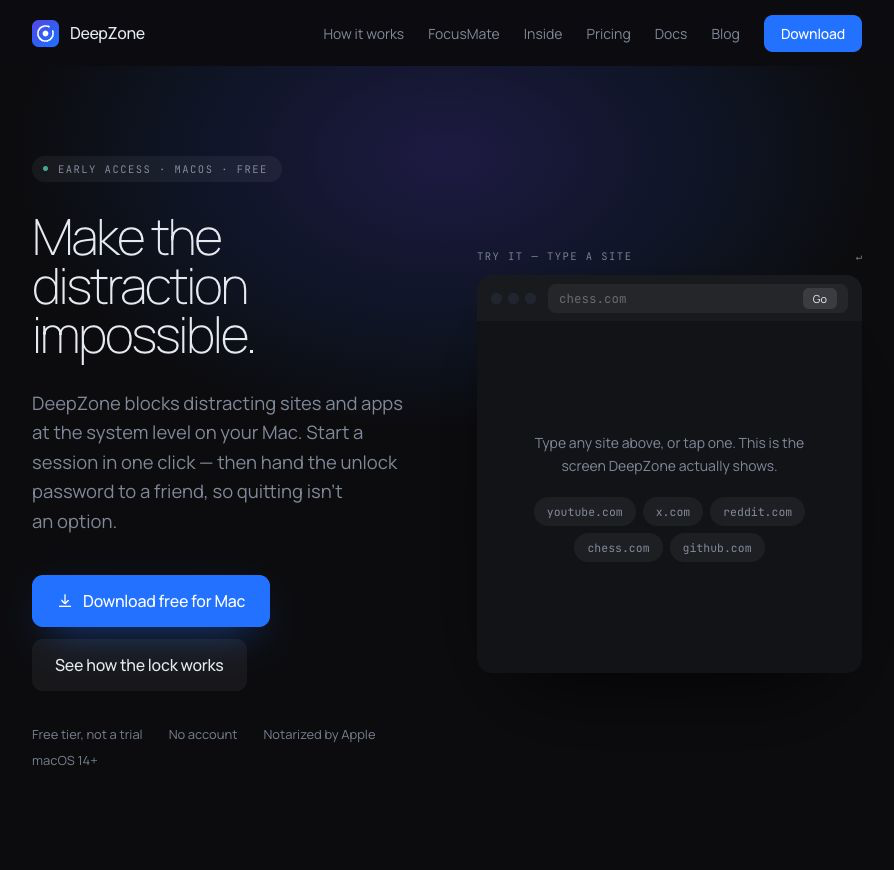
Now open a site that the work session must preserve. The test used https://deepzone.app/, which continued to load normally.
3. Add the work or study schedule
Once the basic rule works, add recurring hours to the same profile. The demonstration used weekdays from 09:00 to 17:00. Treat that as an example, not a universal prescription: a student might choose class and revision blocks; a creator might preserve a planned publishing window.
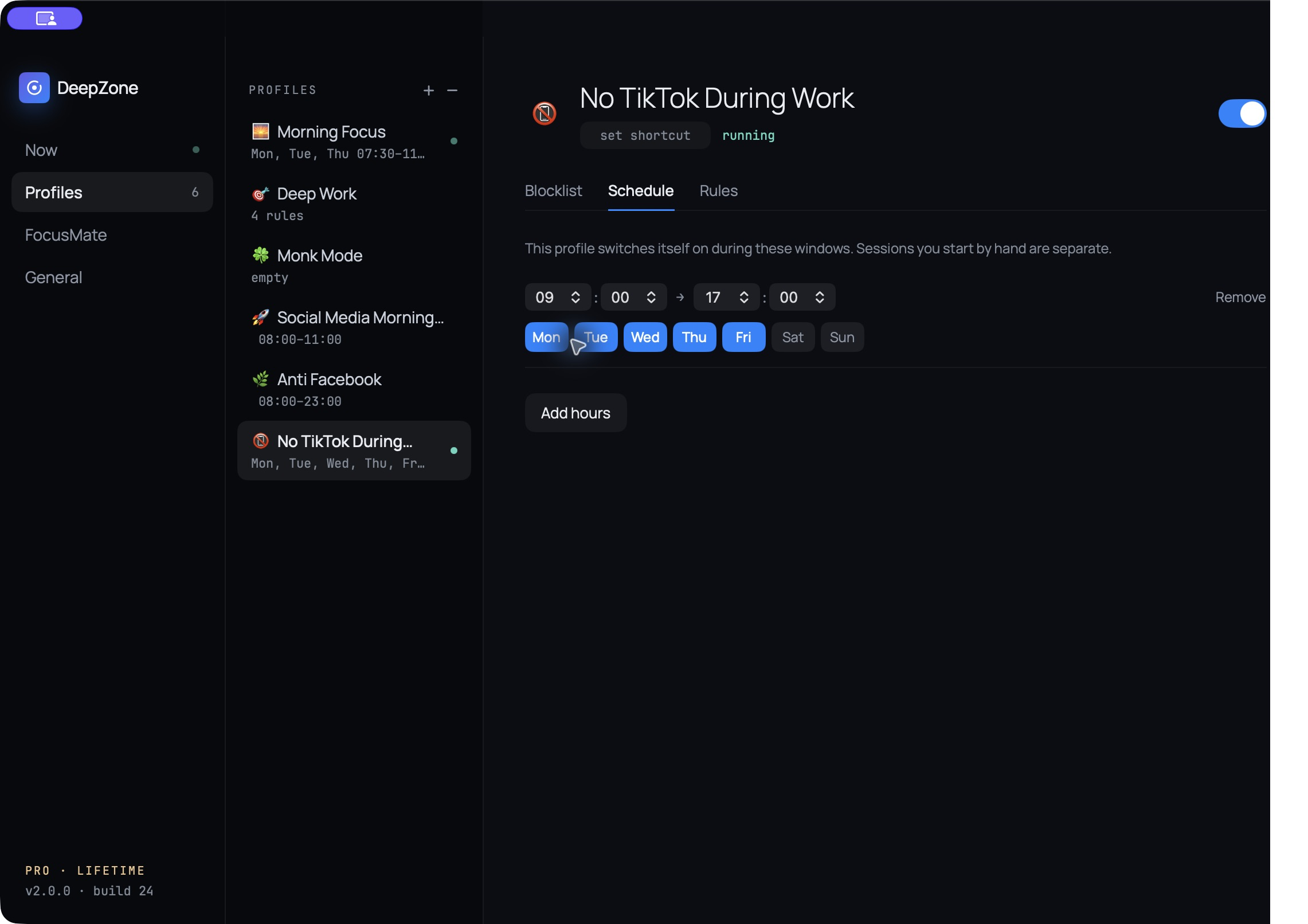
Test both edges before relying on automation: one minute inside the scheduled window, the site should be blocked; after the window ends, it should load again. Keep Lock Mode off until both checks work on your Mac.
4. Check every TikTok route you actually use
A successful homepage test is the baseline, not proof about every entry point. Run this checklist in the browsers and workflows you really use:
| Route | How to test | What to record |
|---|---|---|
| Normal window | Open www.tiktok.com in a fresh tab. | Confirm the DeepZone interruption screen appears. |
| Private window | Open the same URL in a private/incognito window. | Verify locally; private mode is not separately evidenced here. |
| Short link | Open a trusted vm.tiktok.com or vt.tiktok.com link without signing in. | Record both the starting host and redirect result. |
| Installed web app | If you installed TikTok as a Chrome or Safari web app, launch it while the profile runs. | Confirm whether the same domain rule applies in your installed route. |
| Scheduled end | Repeat the homepage test after the profile changes to paused. | Confirm intended access returns. |
If one route still opens, add the exact host revealed by that failed test and repeat the complete checklist. Do not assume a content-delivery domain is required merely because it appears in developer tools.
What this test proves—and what it does not
Established on September 25, 2026: the isolated profile, tiktok.com rule, weekday schedule and preserved work access were configured in the real DeepZone app, version 2.0.0 build 24.
Keep the rule minimal: the parent domain should cover the normal TikTok website. Private windows, shared short links, installed web apps and schedule boundaries are useful checks on your own Mac. Add vm.tiktok.com, vt.tiktok.com or another host only if that specific route remains available; do not add tiktokcdn.com speculatively.
Add strictness only after the recipe survives
For the first run, keep the profile unlocked and short. Once the blocked and allowed routes behave correctly, let the schedule run for several real sessions. If you repeatedly pause it early, DeepZone’s official product page describes Lock Mode as a Pro control that freezes settings, block lists, and quitting for the chosen duration. A stronger lock cannot repair a missing domain, so it belongs at the end of the setup—not the beginning.
Sources and test record
- DeepZone official product page — system-level website blocking, profiles, recurring schedules, browser coverage, plan packaging and Lock Mode; checked September 28, 2026.
- DeepZone Privacy Policy — profiles, schedules, blocked lists, exceptions and focus history stored locally; checked September 28, 2026.
- TikTok Help Center — official web/download entry point; checked September 28, 2026.
The private capture manifest and route notes are stored outside the public article folder. The interruption-screen image is an owner-provided product UI reference with its domain label adapted for this tutorial; the configured-profile and schedule screenshots remain direct app captures.