Recommended setup: Create a profile called “Facebook Check Windows,” add facebook.com, test it unlocked, and schedule the work hours when Facebook should disappear. Keep messenger.com off the list if browser messaging must remain available.
The exact profile recipe
This is a reversible setup for one habit: checking Facebook during a planned work window. It blocks the whole Facebook website during that window. It is not a selective Reels filter, and Facebook Pages or other work tools on the same domain will be unavailable until the schedule ends.
| Setting | Value | Reason |
|---|---|---|
| Profile | Facebook Check Windows | Makes the intended access windows explicit. |
| Website rule | facebook.com | Blocks the tested parent domain, including observed www and m routes. |
| Schedule | Monday–Friday, 09:00–17:00 | An example work window; change it to match your real week. |
| Lock | Off during testing | Lets you repair an incomplete rule without trapping yourself. |
1. Create a dedicated Facebook profile
Open DeepZone from the Mac menu bar, create a new profile, and name it for the boundary you want. “Facebook Check Windows” describes both the blocked work period and the planned time when Page or personal checks can resume.
In the profile’s website list, add facebook.com. Enter the domain rather than a full URL or path. Do not add messenger.com unless messaging should stop too; it is a separate domain and remained reachable in the test.
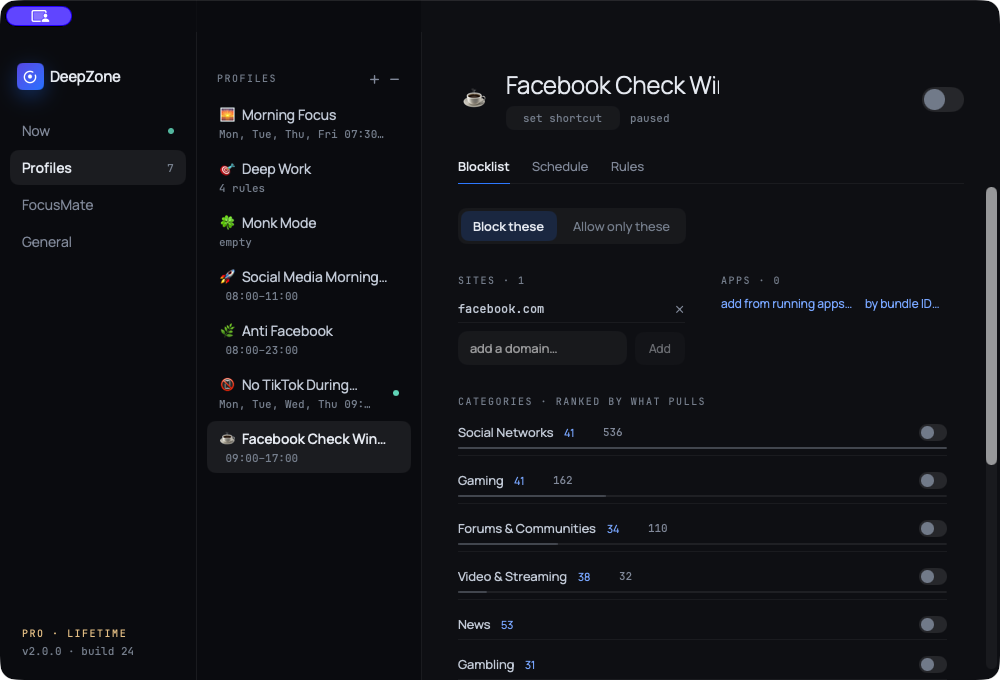
facebook.com. No category, app rule or lock was used.Whole-site tradeoff: Facebook Pages, groups, Marketplace, notifications and other routes on facebook.com share the blocked parent domain. Plan Page and account work for the access window instead of promising same-domain exceptions this recipe did not test.
2. Test the blocked route and a required route
Start the profile while it is still unlocked. Open fresh browser tabs for https://www.facebook.com/ and https://m.facebook.com/. In the live test, both routes were refused while the scheduled profile was running. The public image below is the official interactive DeepZone demo for facebook.com; the route result itself is recorded in the private capture manifest.
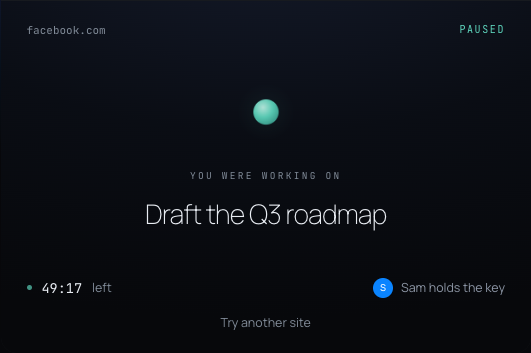
facebook.com, captured from deepzone.app. It shows the expected product UI and is separate from the live route-test record.Next, check the access you intend to preserve. During the same active schedule, https://www.messenger.com/ and https://deepzone.app/ loaded normally. Messenger stayed available because messenger.com was not added to the list.
3. Add the work or study schedule
Once the basic rule works, add recurring hours to the same profile. The demonstration used weekdays from 09:00 to 17:00. Treat that as an example, not a universal prescription: a student might choose class and revision blocks; a creator might preserve a planned publishing window.
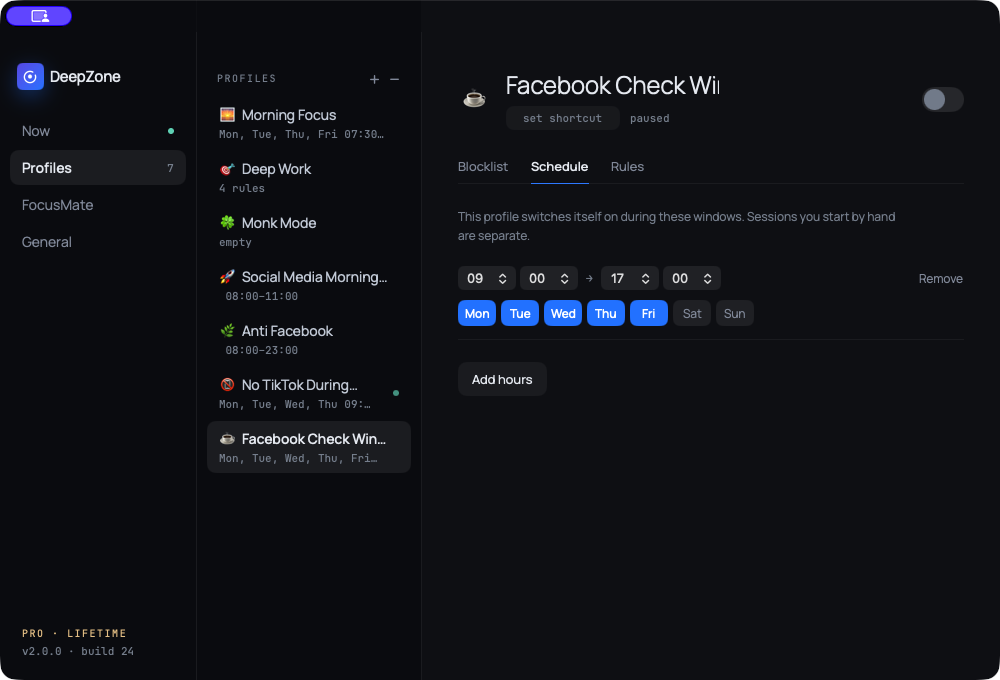
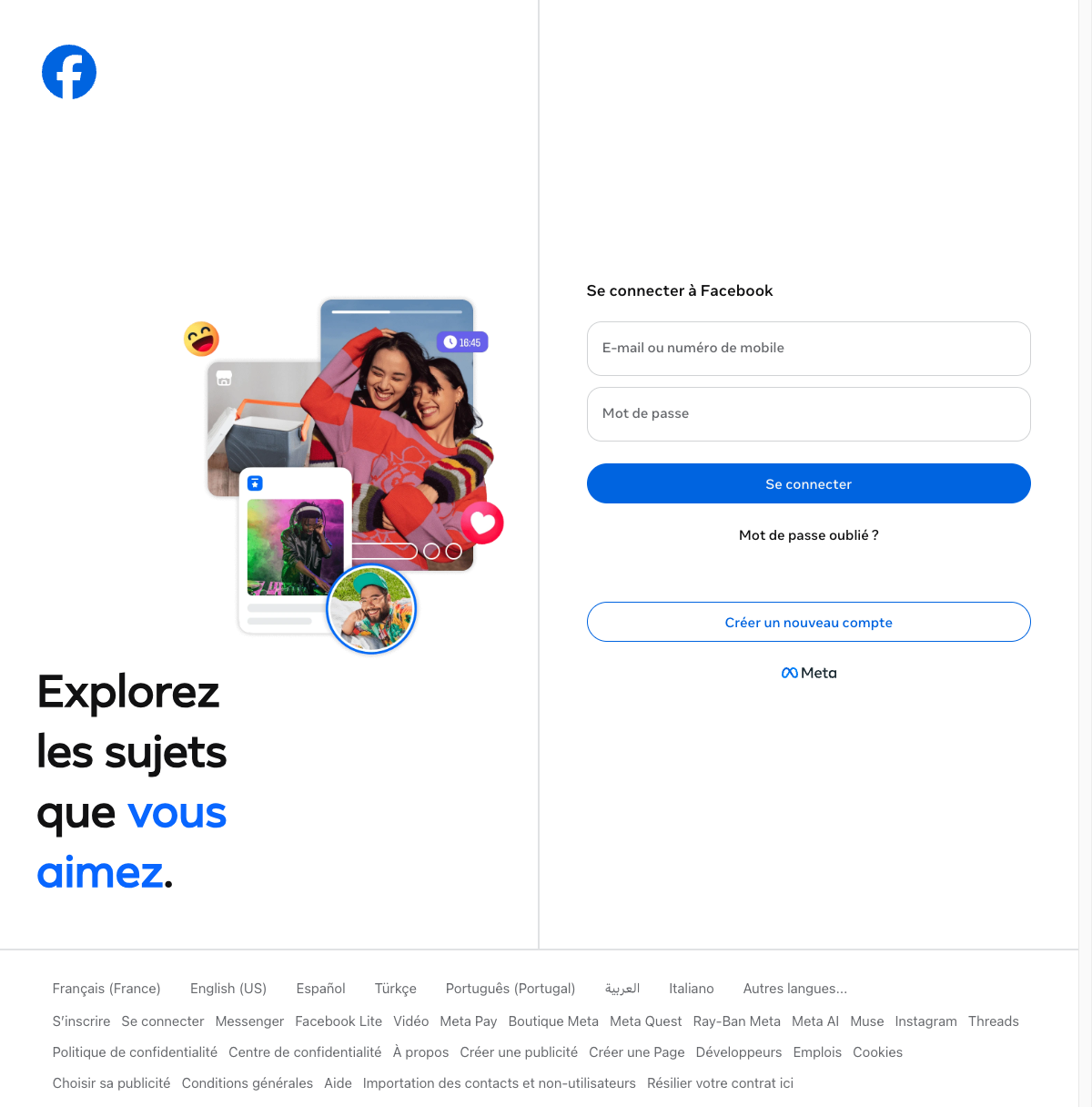
Test both edges before relying on automation. The demonstration used a short 20:20–20:30 window: Facebook was blocked inside it, DeepZone changed the profile to paused at 20:30, and the Facebook login page loaded immediately afterward. Keep Lock Mode off until both checks work on your Mac.
4. Understand what the Facebook rule covers
A parent-domain recipe is simple, but it is intentionally broad. Use this checklist before making the schedule part of your workday:
| Route | How to test | What to record |
|---|---|---|
| Desktop site | Open www.facebook.com in a fresh tab. | Blocked during the live test. |
| Mobile site | Open m.facebook.com. | Blocked during the live test. |
| Facebook work routes | Check any Page, group, Marketplace or Ads route you require. | Assume same-domain tools stop during the window; schedule their use outside it. |
| Messenger website | Open messenger.com. | Loaded during the test because it is a separate, unlisted domain. |
| Scheduled end | Repeat the Facebook test after the profile changes to paused. | Access returned at the tested boundary. |
If a Facebook route you intend to block still opens, record its exact hostname before changing the list. Do not add shared Meta delivery hosts speculatively, and do not add messenger.com if messaging must remain available.
What this test proves—and what it does not
Established on September 29, 2026: the isolated profile, facebook.com rule, short boundary schedule, separate Messenger access and scheduled restoration were tested in the real DeepZone app, version 2.0.0 build 24.
What this does not establish: it is not a selective Reels rule, it does not keep Facebook Pages available during the block, and it does not test the native Messenger app. It proves a whole-site Facebook schedule with a separate browser Messenger route.
Add strictness only after the recipe survives
For the first run, keep the profile unlocked and short. Once the blocked and allowed routes behave correctly, let the schedule run for several real sessions. If you repeatedly pause it early, DeepZone’s official product page describes Lock Mode as a Pro control that freezes settings, block lists, and quitting for the chosen duration. A stronger lock cannot repair a missing domain, so it belongs at the end of the setup—not the beginning.
Sources and test record
- DeepZone official product page — system-level website blocking, profiles, recurring schedules, browser coverage and plan packaging; checked September 29, 2026.
- DeepZone Privacy Policy — profiles, schedules, blocked lists and preferences stored locally; checked September 29, 2026.
- Facebook Help Center: Page access — official Page-management context; checked September 29, 2026.
- Facebook Help Center: Messaging — official guidance distinguishes Messenger and
messenger.com; checked September 29, 2026.
The private capture manifest and route notes are stored outside the public article folder. The profile and schedule images are direct current-build app captures. The interruption-screen image comes from DeepZone’s official interactive product demo and is clearly labeled as a product-UI reference.